
How to Share Power BI Reports Without a Pro License
Did you know you can share Power BI reports with your team even without a paid Pro license? In this guide, you'll learn exactly how Power BI's free sharing options work, when they apply, and how to use them confidently. Whether you're a student, fresher, or working professional, this will save you time and money.
Thousands of Indian professionals pay ₹715 per user every month for Power BI Pro just to share a dashboard. Most of them don't need to. Microsoft offers multiple ways to share Power BI reports for free but nobody talks about them clearly. In this guide, you'll learn 4 proven methods to share your reports without a Pro license, set up in under 10 minutes, with zero technical jargon.
Imagine this: your manager asks you to share a Power BI report with the client before Friday's meeting. You open Power BI Service, click "Share" and a pop-up says the recipient needs a Power BI Pro license. Your stomach drops. A Pro license costs around ₹715 per user per month. You have a team of 15. That's over ₹10,000 every month just to share a dashboard.
Sound familiar?
Here's the good news you don't always need a Pro license to share Power BI reports. Microsoft has built multiple ways to share dashboards and reports for free, or at a much lower cost. In this guide, you'll learn every sharing method available in Power BI Service, when to use which one, and exactly how to set it up step by step.
By the end of this blog, you'll be able to choose the right sharing method for your use case and actually implement it no guesswork. Let's start by understanding what Power BI Service really is.
What Is Power BI Service (And Why Sharing Matters)?
Power BI is Microsoft's business intelligence tool. Most beginners use Power BI Desktop the free Windows app where you build reports and dashboards. But Power BI Desktop is just the builder. To share your reports with others over the internet, you need Power BI Service the cloud-based web version at app.powerbi.com.
Think of it this way: Power BI Desktop is your kitchen where you cook. Power BI Service is the restaurant where guests are served. You can cook the best dish in the world, but if there's no restaurant, no one eats.
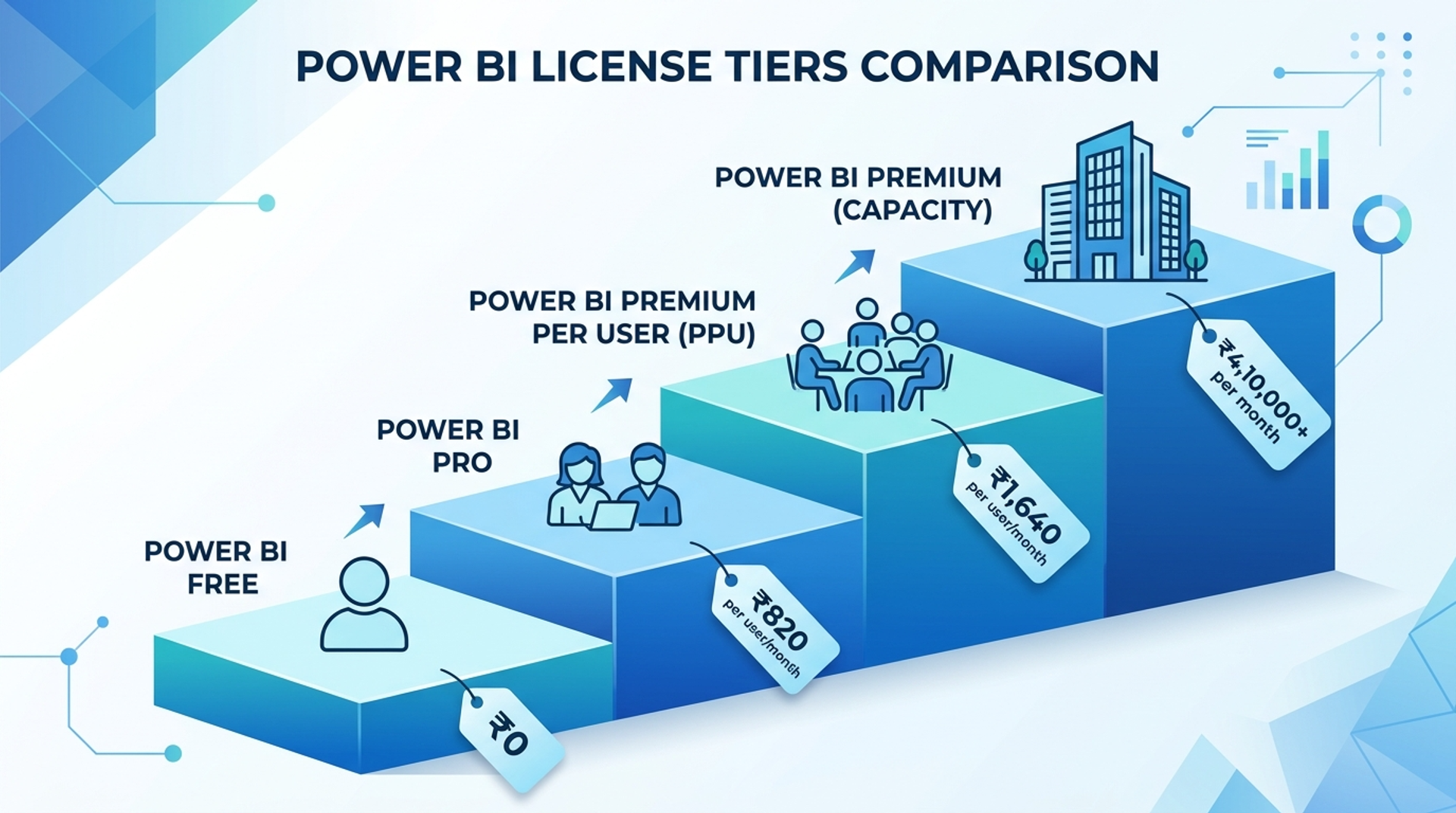
Now here's where the confusion starts. Power BI Service has different tiers:
- Power BI Free : You can sign in, upload, and view your own reports. Sharing with others is restricted.
- Power BI Pro : Full sharing features. You and the recipient both need Pro. Costs ₹715/user/month.
- Power BI Premium Per User (PPU) : Advanced features, ₹1,430/user/month.
- Power BI Premium Capacity : Organisation-level plan. Expensive, but free viewers for all users under it.
The key insight most beginners miss: the sharing restriction depends on where your report is stored and who is viewing it not just whether you have a Pro license yourself.
Key Takeaway: Power BI Service is where sharing happens and the license type determines your sharing options, not just your ability to build reports.
Why This Skill Matters in India's Job Market (2024–2025)
Power BI is not a "nice to have" skill in India anymore. It is a hiring requirement across industries.
According to LinkedIn's 2024 India Jobs Trends report, "Data Analyst" was among the top 5 fastest-growing job roles in India. Over 68% of data analyst job listings in India mention Power BI as a required or preferred skill. Job portals like Naukri and Indeed show 15,000+ active Power BI job listings at any given time in cities like Mumbai, Bengaluru, Hyderabad, Pune, and Delhi NCR.
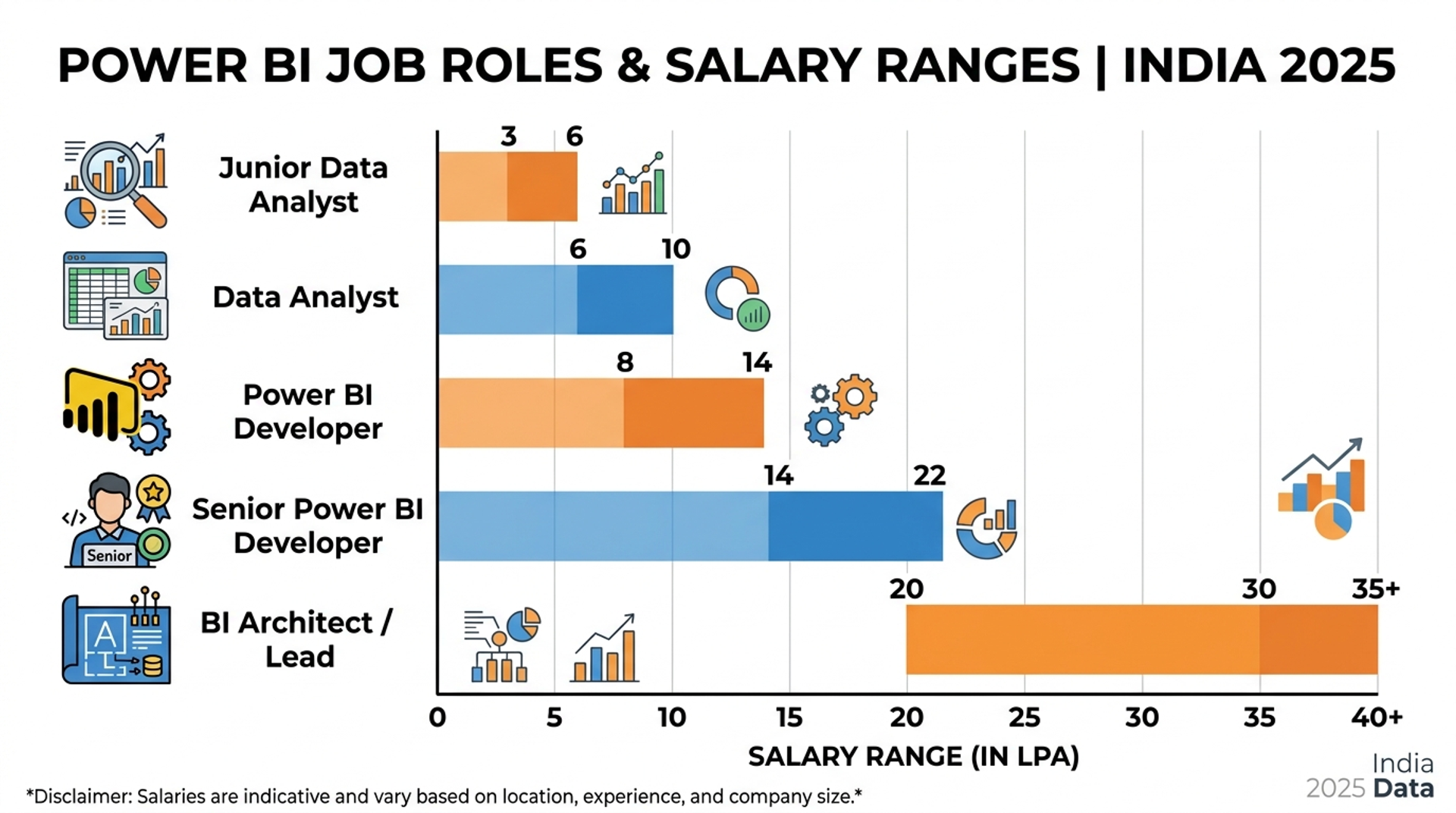
Here's what the salary landscape looks like:
But here's what most freshers get wrong: they learn to build reports but never learn how to share, distribute, or manage them in a real workplace. In an actual job, you'll spend 30–40% of your time not just building dashboards but publishing, sharing, managing permissions, and troubleshooting access issues. Companies expect you to know Power BI Service, not just Desktop.
This is why our Data Analytics course at Cinute Digital covers Power BI end-to-end from building your first chart to deploying and sharing reports in a real organization environment.
Key Takeaway: Power BI sharing knowledge is what separates a portfolio project from a production-ready professional and Indian employers are paying top rupee for exactly that skill.
How to Share Power BI Reports Without a Pro License (Step-by-Step)
There are four real methods to share Power BI reports without requiring every viewer to have a Pro license. Let's walk through each one.
Method 1: Publish to Web (Completely Free Public Reports)
This is Power BI's most open sharing method. It generates a public URL or embed code anyone can access no login, no license required.
Step 1: Open your report in Power BI Service (app.powerbi.com).
Step 2: Click File in the top menu → Select Embed report → Click Publish to web (public).
Step 3: A dialog box appears. Click Create embed code.
Step 4: Power BI gives you a link (for browsers) and an iframe code (for websites). Copy either one.
Step 5: Share the link via email, WhatsApp, or paste the iframe into your website.
Anyone with the link can now view your report for free, forever.
Important Warning: "Publish to Web" makes your report publicly accessible. Anyone with the link can see it. Never use this for confidential, financial, or HR data. Use it only for public-facing reports like sales dashboards for clients, educational content, or public-interest data.
Method 2: Power BI Premium Capacity (Free Viewers for the Whole Organization)
If your organization has a Power BI Premium Capacity subscription, viewers don't need any paid license. Only the person who creates and publishes the report needs Pro or PPU.
How to use it:
Step 1: Your admin must have set up a Premium Workspace (it shows a ◆ diamond icon next to the workspace name).
Step 2: Publish your report to that Premium Workspace from Power BI Desktop (Home → Publish → Select premium workspace).
Step 3: Share the report link with your team members.
Step 4: Recipients can view the report with just a free Power BI account no Pro needed.
This is how large organizations like banks, IT companies, and MNCs in India share reports with hundreds of employees without spending on individual Pro licenses.
Method 3: Embed in SharePoint or Teams (For Office 365 Users)
If your company uses Microsoft 365, you can embed Power BI reports directly inside SharePoint pages or Microsoft Teams channels and any licensed Microsoft 365 user can view them without a separate Power BI Pro license.
Step 1: In Power BI Service, open your report.
Step 2: Click File → Embed report → SharePoint Online (or Teams).
Step 3: Copy the embed link provided.
Step 4: In SharePoint, add a Power BI web part and paste the link. Save the page.
Step 5: Any team member who can access that SharePoint page can view the report.
This is the most popular method in Indian IT companies that run on Microsoft infrastructure.
Method 4: Power BI App (Sharing via Workspace App Requires One Pro Publisher)
You can package multiple reports into a Power BI App and share it with your organization. Viewers in a Premium workspace can access it for free.
Step 1: Create a workspace in Power BI Service.
Step 2: Publish reports to that workspace.
Step 3: Click Create app from the workspace view.
Step 4: Add audience choose specific users or your whole organization.
Step 5: Publish the app. Recipients receive an email with a link.
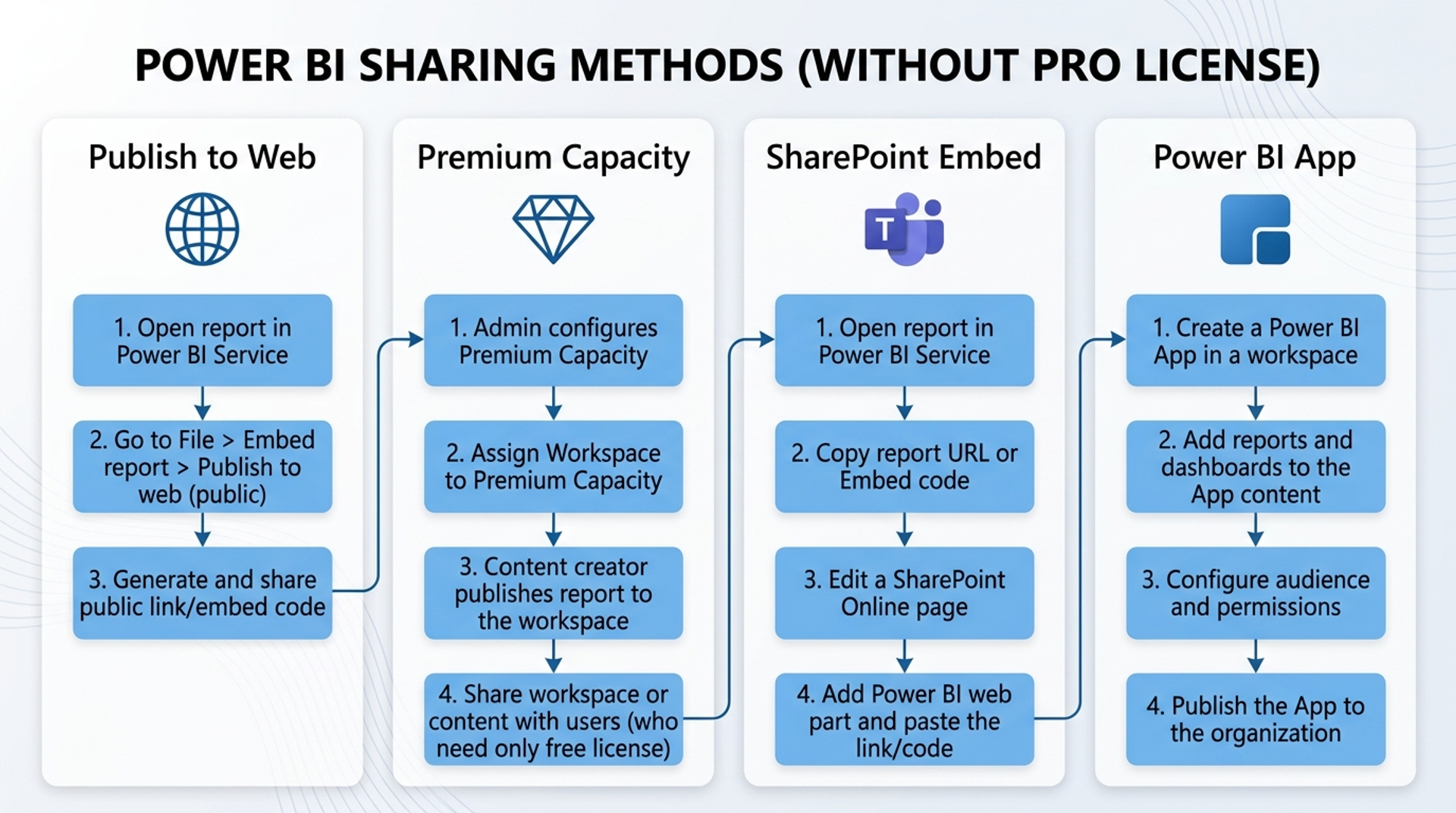
Key Takeaway: You have at least four solid ways to share Power BI reports without making every viewer pay for a Pro license — choose based on whether your data is public or private, and what tools your organisation already uses.
Common Mistakes Beginners Make (And How to Avoid Them)
Even smart professionals make these errors when starting with Power BI sharing. Here's what to watch out for:
Mistake 1: Using "Publish to Web" for confidential data
This is the biggest and most dangerous mistake. New users discover "Publish to Web" and use it for everything including payroll dashboards, client financial data, or internal KPIs. That data becomes publicly accessible. Always check your data sensitivity before choosing a sharing method.
Mistake 2: Sharing a Desktop file (.pbix) instead of the Service link
Sending the .pbix file via email is not proper sharing. The recipient needs Power BI Desktop installed, and they'll see a static version no live data refresh. Always publish to Power BI Service first and share the web link.
Mistake 3: Confusing "Share" with "Export"
"Export to PDF or Excel" gives a snapshot. It's not sharing it can't update when data refreshes. If you need live, always-updated reports, use the Service sharing methods above.
Mistake 4: Not checking workspace type before sharing
If your workspace is a "My Workspace" (personal), you cannot share to free users Pro is required. You must move the report to an App Workspace under a Premium capacity for free viewer access.
Mistake 5: Skipping Row-Level Security (RLS) before sharing
When sharing with multiple users or externally, always set up RLS to make sure users see only the data they're authorized to see. Skipping this can expose data from other regions, departments, or clients to the wrong people.
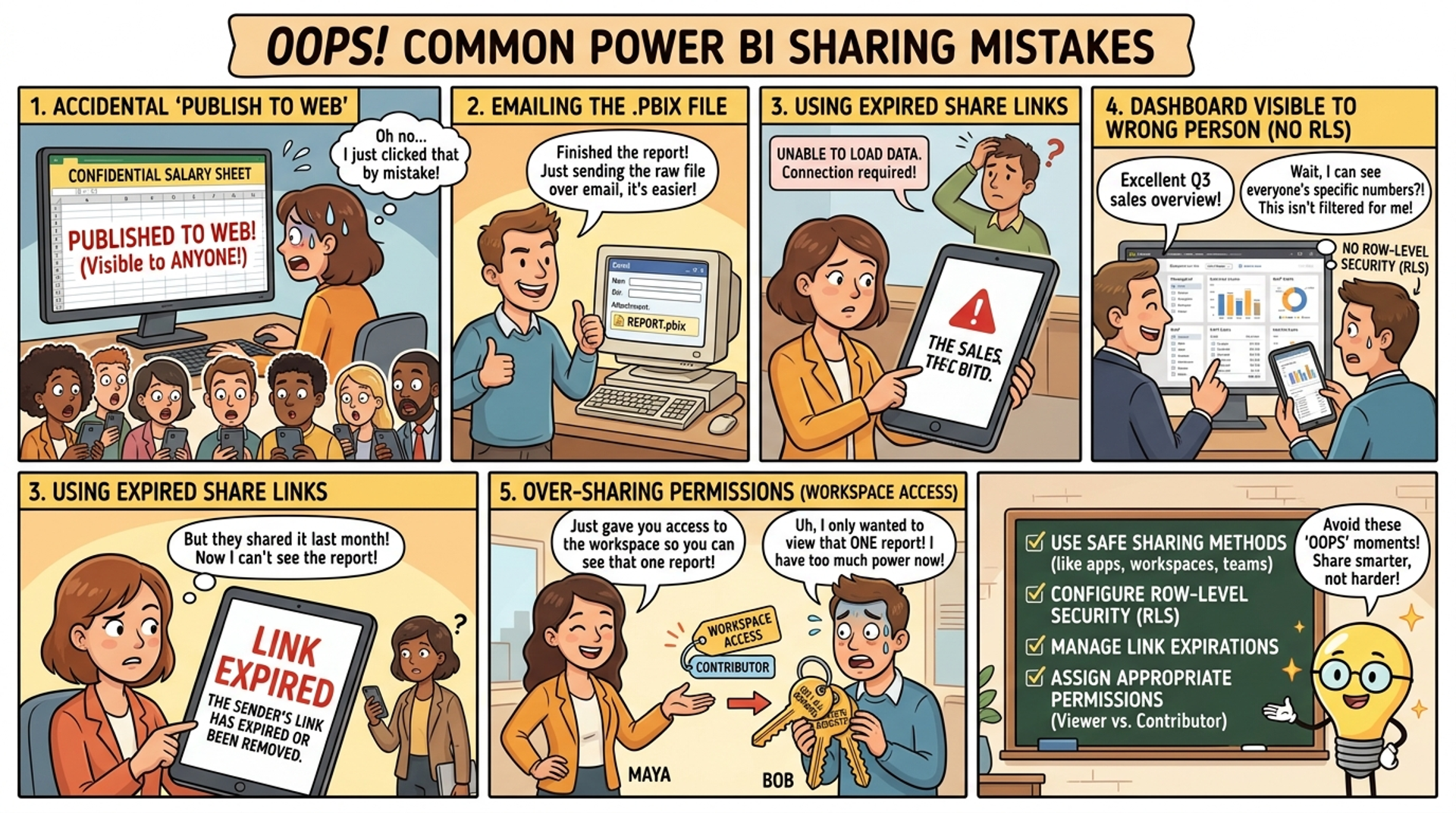
Key Takeaway: Most Power BI sharing mistakes happen not from lack of skill, but from lack of understanding of what each sharing method actually does — read before you click.
Career Path & Learning Roadmap
Once you've mastered Power BI sharing, you're no longer just a "report builder" you're someone who understands end-to-end BI deployment. That's a different salary bracket.
Jobs that directly use this skill:
- Data Analyst : Uses Power BI daily; sharing is part of every weekly deliverable
- Business Intelligence Developer : Manages workspaces, permissions, and report lifecycle
- MIS Executive : Automates report sharing and scheduling for leadership
- Data Engineering roles : Sets up pipelines that feed live data into shared dashboards
What to learn next (in order):
- Power BI Data Modelling : DAX functions, relationships, calculated columns
- Power BI Row-Level Security (RLS) : For secure enterprise sharing
- Power Query (M Language) : Data transformation before visualisation
- SQL for Data Analysts : To connect Power BI to live databases
- Azure Data Services : For large-scale enterprise BI in Indian MNCs
Realistic timeline to job-readiness:
- With 3–4 hours of practice per week, most learners go from zero to job-ready in 4–5 months.
- If you're already working in MIS, finance, or operations, you can get job-ready in 2–3 months because you already understand the business context.
If you want a structured path with mentorship, live projects, and placement support explore our Power BI and Data Analytics training at Cinute Digital. We've placed 500+ learners in analytics roles across Mumbai, Pune, Bengaluru, and Hyderabad.
FAQ
Q1. Can I share a Power BI report with someone who doesn't have a Pro license?
Yes, you can. If you publish the report to a Power BI Premium workspace, viewers can access it with just a free Power BI account — no Pro license needed. Alternatively, using "Publish to Web" allows anyone with a link to view the report without any license. However, standard sharing from a non-premium workspace does require both sender and recipient to have Pro licenses.
Q2. What is the difference between Power BI Free and Pro license?
Power BI Free lets you sign in, build, and view your own reports in Power BI Service. You cannot share reports with others unless you're in a Premium workspace. Power BI Pro (₹715/user/month) allows full sharing with other Pro users, collaboration in shared workspaces, and access to advanced features. For teams, Power BI Premium Capacity is more cost-effective as it allows unlimited free viewers.
Q3. How do I share a Power BI report with external users outside my organization?
You can share Power BI reports with external users in three ways:
(1) Use "Publish to Web" for public reports generates a shareable link with no login required.
(2) Add the external user as a guest in your Azure Active Directory and share the report directly.
(3) Embed the report in a public website using the embed code. External users in Azure AD guest accounts still need a Pro license unless you're on Premium capacity.
Q4. Is Power BI Publish to Web free?
Yes, "Publish to Web" is completely free and requires no paid license for viewers. It creates a public URL and iframe embed code that anyone can access without logging in. However, this method makes your report publicly visible to anyone with the link so it should only be used for non-sensitive, public-facing data. It is not suitable for confidential business reports.
Q5. Do I need Power BI Pro to share with my team?
Not necessarily. If your organisation has a Power BI Premium Capacity subscription, your team members can view reports with a free license. Also, embedding reports in Microsoft Teams or SharePoint via Microsoft 365 allows licensed Office users to view them without a separate Power BI Pro subscription. You only need Pro when sharing directly from a standard (non-premium) workspace.
Conclusion
Let's recap the three most important things you've learned today:
First: Power BI's free sharing options are real and powerful. "Publish to Web," Premium Capacity, SharePoint embedding, and Power BI Apps all let you share reports without making every viewer pay for a Pro license.
Second: Choosing the right method depends on whether your data is public or private, and what Microsoft infrastructure your organisation already uses. There's no one-size-fits-all answer but now you know how to choose.
Third: This is a skill that employers actually test in interviews. Knowing how to share, secure, and manage Power BI reports puts you ahead of 80% of candidates who only know how to build charts.
You've done the hard part you now understand Power BI sharing better than most working professionals. The next step is hands-on practice.
If you want to go beyond theory and learn Power BI with real datasets, live projects, and expert guidance, book a free demo class at Cinute Digital today. Our Mumbai-based instructors have trained thousands of professionals and they'll help you get there faster.
Tags

A visionary data scientist dedicated to unlocking the potential of data to drive informed decision-making and spark innovation. With a strong foundation in Data Science.